
When you encounter a chrome microphone not working error or discover that your webcam is blocked during a critical Google Meet or Zoom call, the root cause typically falls into one of three areas: website-level blocks, Chrome global privacy rules, or operating system access controls. In most instances, you can restore full audio and video functionality within two minutes by adjusting site permissions or enabling OS-level toggles in Windows 11 or macOS.
Quick Fix: Allow Camera Access in Chrome via the Address Bar
The fastest way to grant permission for an active video conference is directly from the omnibox (address bar). Modern versions of google chrome use a unified "Site information" icon (often displayed as sliders or a lock) right next to the URL.
- Open the webpage where the call is hosted (such as
meet.google.comorzoom.us). - Click the View site information icon (the tune/slider icon) on the left side of the address bar.
- Locate the Camera and Microphone toggles and switch both to Allow (or toggle them on).
- Refresh the tab (press
F5orCmd + R) to apply your new settings immediately.
Managing Global Chrome Site Permissions
If the site settings dropdown does not solve the issue, Chrome's internal security rules may be set to block hardware requests automatically. You can review and adjust these global rules in the main settings panel.
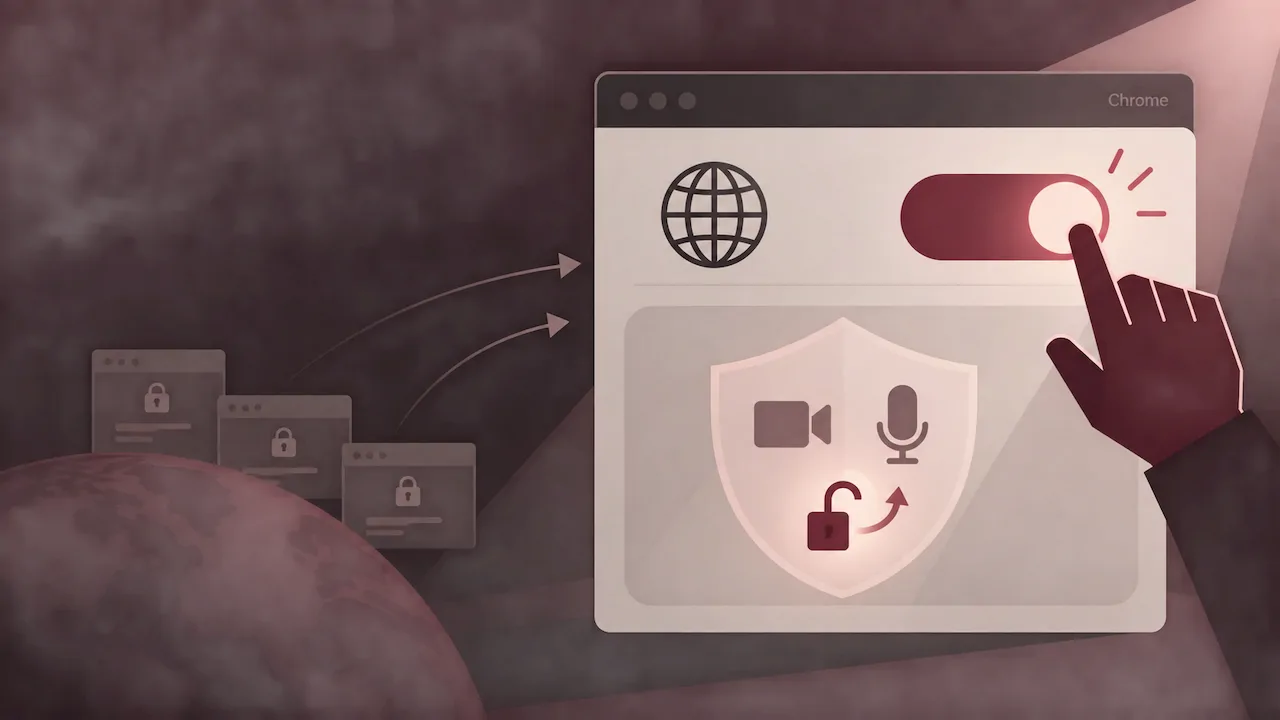
- Click the three vertical dots in the top-right corner of the browser and select Settings.
- Navigate to Privacy and security > Site settings.
- Under the Permissions section, click on Camera or Microphone.
- Ensure the default behavior is set to "Sites can ask to use your camera/microphone" rather than "Don't allow sites to use your camera/microphone".
- Inspect the "Not allowed to use your camera/microphone" list. If your meeting platform appears there, click the trash can icon next to the domain to remove the block.
Configuring OS-Level Permissions on Windows 11 and macOS
Modern operating systems enforce hardware-level privacy barriers that override browser preferences. Technical discussions across platforms like Reddit and standard hardware diagnostics show that missing OS permission is the leading cause of persistent camera and mic failures.
Enabling Permissions in Windows 11
- Open Windows Settings (press
Win + I) and choose Privacy & security. - Scroll to App permissions and select Microphone (repeat later for Camera).
- Verify that Microphone access and Let apps access your microphone are both turned On.
- Scroll down to Let desktop apps access your microphone and confirm that Google Chrome is allowed.
Enabling Permissions in macOS
- Click the Apple menu and navigate to System Settings > Privacy & Security.
- Click on Microphone in the right-hand pane.
- Toggle the switch next to Google Chrome to the On position.
- Return to the previous screen, select Camera, and enable Chrome there as well.
- Restart Chrome if prompted so the operating system can apply the new security sandbox profile.
Chrome Permission Hierarchy and Troubleshooting Checklist
The following table outlines where hardware access can get blocked and how to apply the appropriate chrome site permissions fix.
| Permission Level | Location | Typical Symptom | Recommended Resolution |
|---|---|---|---|
| Site-Level | Address Bar (Tune Icon) | "Permission dismissed" prompt | Toggle Camera/Mic to "Allow" and reload tab |
| Browser Global | chrome://settings/content | No prompt appears at all | Set default to "Sites can ask" and clear blocked list |
| Operating System | Windows/macOS Privacy Settings | Site says "Allowed" but shows black screen/no audio | Grant Chrome system-level hardware permissions |
| Hardware/Driver | Physical switches / Device Manager | Device not recognized across all apps | Unmute physical switch; update device drivers |
Advanced Troubleshooting for Persistent Audio and Video Errors
If you have verified browser and system permissions but the microphone or camera still fails to activate, consider these advanced troubleshooting steps:
- Check Exclusive Lock: Ensure another desktop application (such as Skype, Discord, or desktop Zoom) is not monopolizing the webcam or microphone in exclusive mode.
- Inspect Hardware Mute Switches: Many modern laptops and external USB headsets include physical privacy shutters or inline mute buttons that override software configurations.
- Disable Conflicting Extensions: Privacy-focused browser add-ons can occasionally block WebRTC streams. Try launching your meeting in an Incognito window (
Ctrl + Shift + N) to test without extensions. - Update or Reinstall the Browser: Corrupted browser installation files can break hardware API bindings. Performing a fresh chrome download and reinstalling will restore pristine configuration defaults.
FAQ
Why does Google Meet say "Microphone is blocked" even after clicking Allow?
This conflict usually happens when your operating system (Windows or macOS) blocks Chrome at the system privacy level, or another running program holds exclusive hardware control over the microphone.
How do I reset all camera and microphone permissions in Chrome?
Navigate to chrome://settings/content/all in your address bar, find the relevant domain, and click "Clear data" or "Reset permissions" to restore factory default prompts for that website.
Why is Chrome not showing up in macOS Privacy & Security settings?
If Chrome does not appear in your macOS Camera or Microphone list, trigger a permission request by opening a test meeting in Chrome. If it still does not prompt, reset the TCC database via Terminal using tccutil reset Microphone com.google.Chrome.
Can Chrome extensions block my camera and microphone?
Yes. Ad blockers, script blockers, and aggressive anti-tracking extensions can intercept WebRTC connection requests. Test your site in Incognito mode to confirm whether an extension is causing the restriction.