
To disable chrome notifications and eliminate intrusive pop-ups, navigate to Settings > Privacy and security > Site settings > Notifications in your browser, then select "Don't allow sites to send notifications." This instantly halts all future permission prompts and gives you total control over existing website alerts.
Why Disabling Notification Spam Matters
Web push notifications were originally designed to deliver timely alerts like email updates or breaking news. However, communities across Reddit and cybersecurity forums frequently report that deceptive websites exploit notification prompts as modern pop-up ads, delivering clickbait, fake virus warnings, and affiliate spam directly to your desktop or mobile lock screen.
"Unwanted browser notifications have become the new adware vector. Revoking universal notification permissions is one of the most effective ways to restore online privacy and focus."
Whether you want to block all alerts or clean up permissions on your existing browser installation using google chrome, the configuration takes less than two minutes.
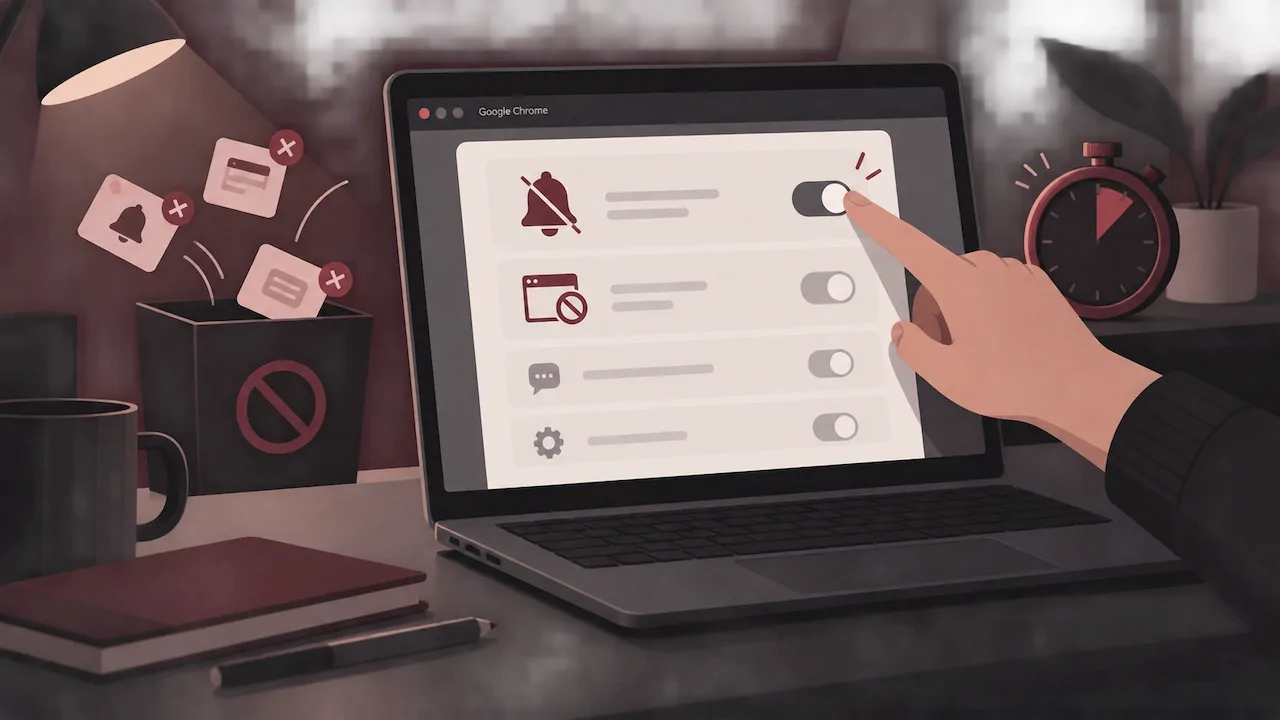
Step-by-Step: Block Website Notification Requests on Desktop
Follow these steps on Windows, macOS, or ChromeOS to prevent sites from asking to send notifications:
- Open your browser and click the three-dot menu in the top right corner.
- Select Settings from the drop-down list.
- In the left sidebar, click Privacy and security, then click Site settings.
- Under the Permissions section, choose Notifications.
- Under Default behavior, select "Don't allow sites to send notifications" to block website notification requests globally.
Remove Previously Allowed Website Notifications
If you have already accidentally clicked "Allow" on malicious or noisy sites, you need to clean up the existing whitelist:
- Scroll down to the "Allowed to send notifications" section on the same settings page.
- Locate the domain you want to silence.
- Click the three vertical dots next to the domain name.
- Choose Remove (to reset permission) or Block (to permanently ban alerts from that domain).
How to Stop Pop-ups in Chrome
While notifications appear in your OS notification center, traditional pop-ups open new browser windows or overlay tabs. To stop pop ups chrome might trigger:
- Go back to Settings > Privacy and security > Site settings.
- Scroll down and click Pop-ups and redirects.
- Under Default behavior, ensure "Don't allow sites to send pop-ups or use redirects" is selected.
- Check the Allowed to send pop-ups list and delete any suspicious websites.
If intrusive pop-ups persist even after adjusting these rules, update your browser via the official google chrome download channel to guarantee built-in malware protections and ad filters are active.
Notification Modes Compared
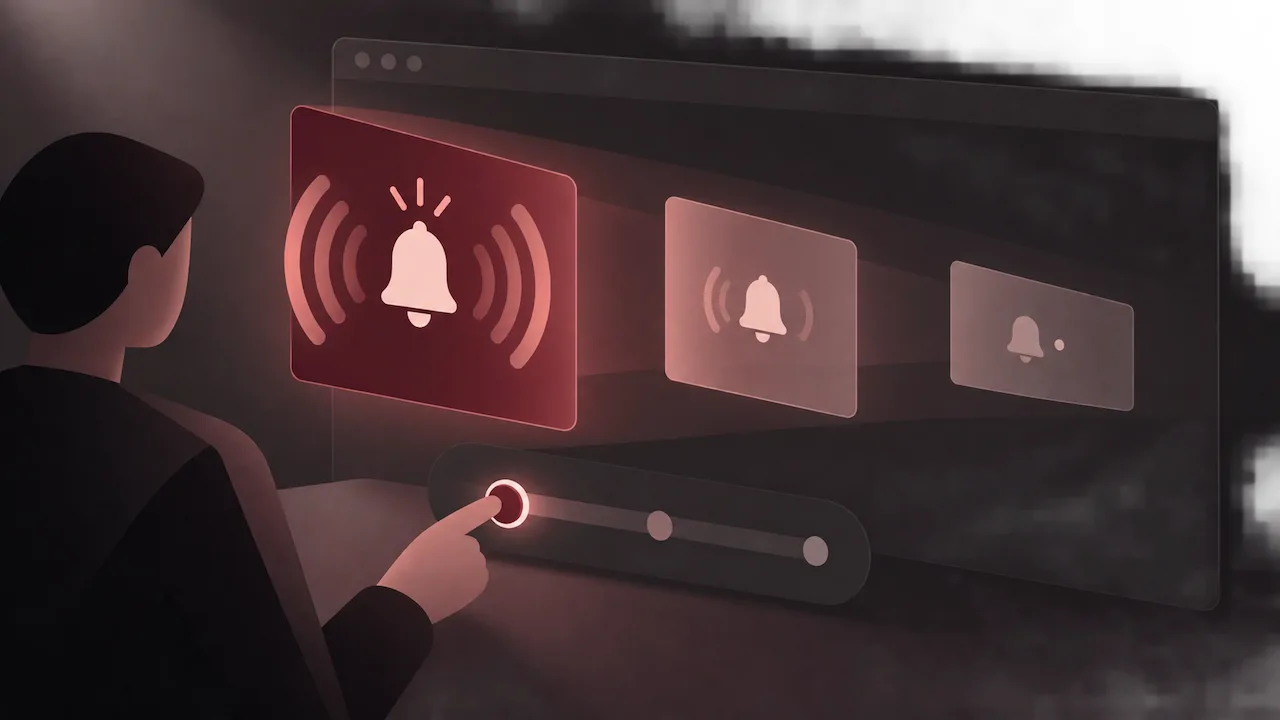
Chrome provides three primary ways to manage web alerts depending on how much interruption you tolerate:
| Setting Mode | What It Does | Best Suited For |
|---|---|---|
| Sites can ask | Prompts a drop-down permission box on every visit. | Users who actively want news and messaging alerts. |
| Use quieter messaging | Silently collapses prompts into a bell icon in the URL bar. | Users who dislike pop-ups but want selective opt-in. |
| Don't allow sites | Completely disables all notification requests across the web. | Users seeking maximum privacy and zero distractions. |
How to Turn Off Chrome Notifications on Android
Mobile users often suffer from persistent status-bar notification spam. Here is how to disable alerts on Android devices:
- Open the Chrome app on your Android phone or tablet.
- Tap the three dots in the upper-right corner and tap Settings.
- Tap Notifications to open system-level controls, or select Site settings > Notifications.
- Toggle the switch Off to prevent websites from asking for permission entirely.
FAQ
How do I stop fake virus pop-ups appearing in Chrome?
Fake virus warnings are almost always spam notifications from websites you accidentally allowed. Go to Settings > Privacy and security > Site settings > Notifications, inspect the "Allowed" list, and click "Remove" on any unfamiliar domain.
What is the difference between pop-ups and web push notifications?
Pop-ups are web pages that launch automatically in a new window or tab when interacting with a site. Push notifications are system-level messages delivered through your browser, even when the website's tab is closed.
Will disabling notifications break essential website features?
No. Core website functionality such as browsing, logging in, shopping, and video streaming will work normally. Only external alert services (such as instant web chat pings or calendar pop-up reminders) will be silenced.