
To sync bookmarks, passwords, and open tabs across devices, sign in to your Google Account on every device running Google Chrome and enable Chrome Sync. This feature links your browsing environment across Windows, macOS, Linux, Android, and iOS so changes made on one device instantly reflect on your others.
How to Turn On Chrome Sync with a Google Account
Setting up synchronization requires signing into the browser with the same Google credentials across all your endpoints. If you need to install the browser on a new computer, complete your Chrome download first before proceeding.
On Desktop (Windows & Mac)
- Open Chrome on your computer.
- Click the Profile icon in the top-right corner next to the address bar.
- Click Turn on sync... (or Sign in).
- Enter your Google Account email and password.
- Select Yes, I'm in to activate synchronization.
On Mobile (Android & iOS)
- Open the Chrome app on your phone or tablet.
- Tap the three-dot menu (top right on Android, bottom right on iOS) and tap Settings.
- Tap Turn on Sync or select your Google Account.
- Confirm by tapping Yes, I'm In.
Customizing Specific Sync Data Types
You do not have to synchronize everything. According to official Google Account Sync documentation, Chrome lets you fine-tune exactly what information travels between your devices.
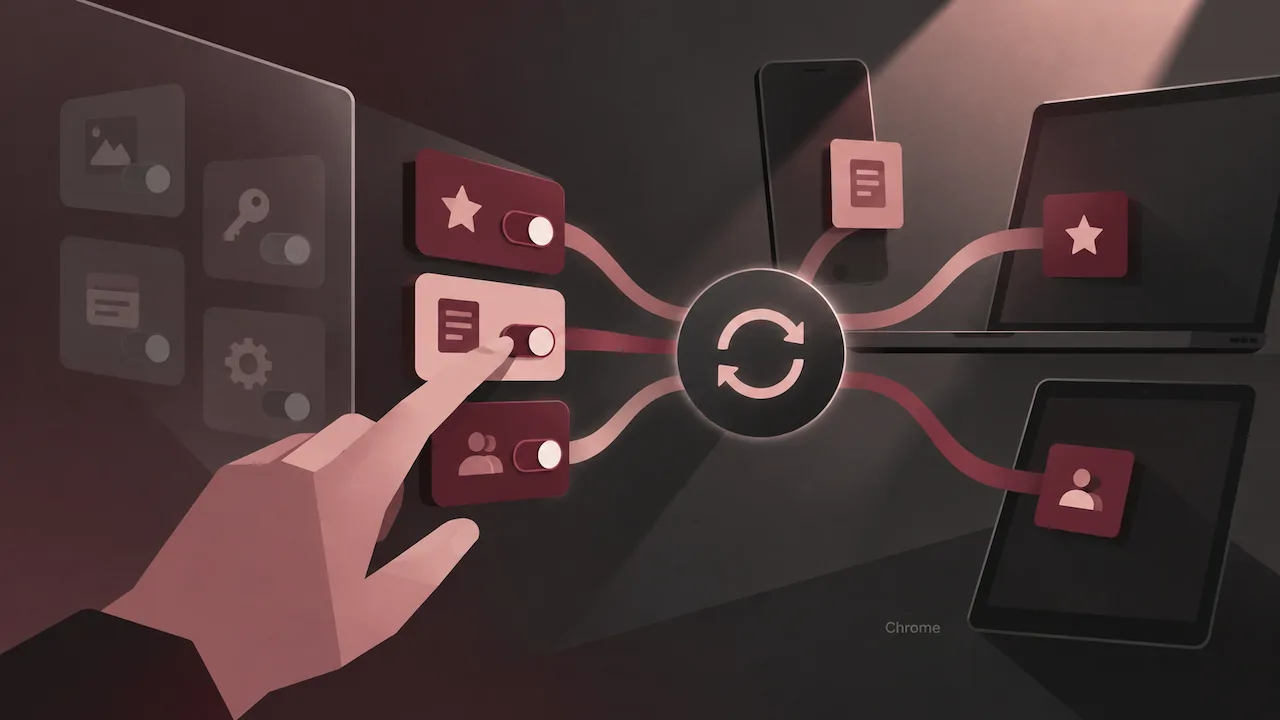
- Bookmarks: Keeps your saved web pages organized in folders across mobile and desktop.
- Passwords and passkeys: Automatically saves credentials to Google Password Manager for auto-fill.
- Autofill data: Syncs addresses, phone numbers, and payment methods.
- Browsing History: Allows unified search history across devices.
- Reading List: Retains offline-accessible articles across platforms.
- Extensions & Settings: Keeps themes, shortcuts, and add-ons mirrored on all desktop installations.
How to Select Specific Categories
- Go to Settings > You and Google > Sync and Google services.
- Click Manage what you sync.
- Switch the option from Sync everything to Customize sync.
- Toggle individual data types on or off based on your privacy and storage preferences.
How to Sync Open Tabs from Phone to PC
A frequent workflow is researching a topic on a smartphone and continuing it on a laptop. Chrome provides two convenient ways to access mobile tabs on your desktop.
Method 1: Accessing Tabs via Chrome History
- On your PC, press
Ctrl + H(orCmd + Yon Mac) to open History. - Click Tabs from other devices on the left-side navigation panel.
- Expand the list under your smartphone name to view and click any active tab.
Method 2: Sending Tabs Directly Between Devices
- On mobile, open the tab you wish to view on desktop.
- Tap the Share icon and select Send to your devices.
- Choose your computer from the list of synced devices.
- A prompt will appear in desktop Chrome allowing you to open the URL immediately.
Chrome Sync vs. Local Browser Profiles
| Feature | Chrome Sync (Google Account) | Local Profile (No Sync) |
|---|---|---|
| Data Storage | Encrypted in Google Cloud servers | Stored locally on current machine |
| Cross-Device Access | Instant across PC, Mac, Android, iOS | Limited to the single device |
| Password Recovery | Available upon logging into any device | Lost if hardware fails or OS resets |
| Open Tab Sharing | Supported via Tab Groups & History | Not supported |
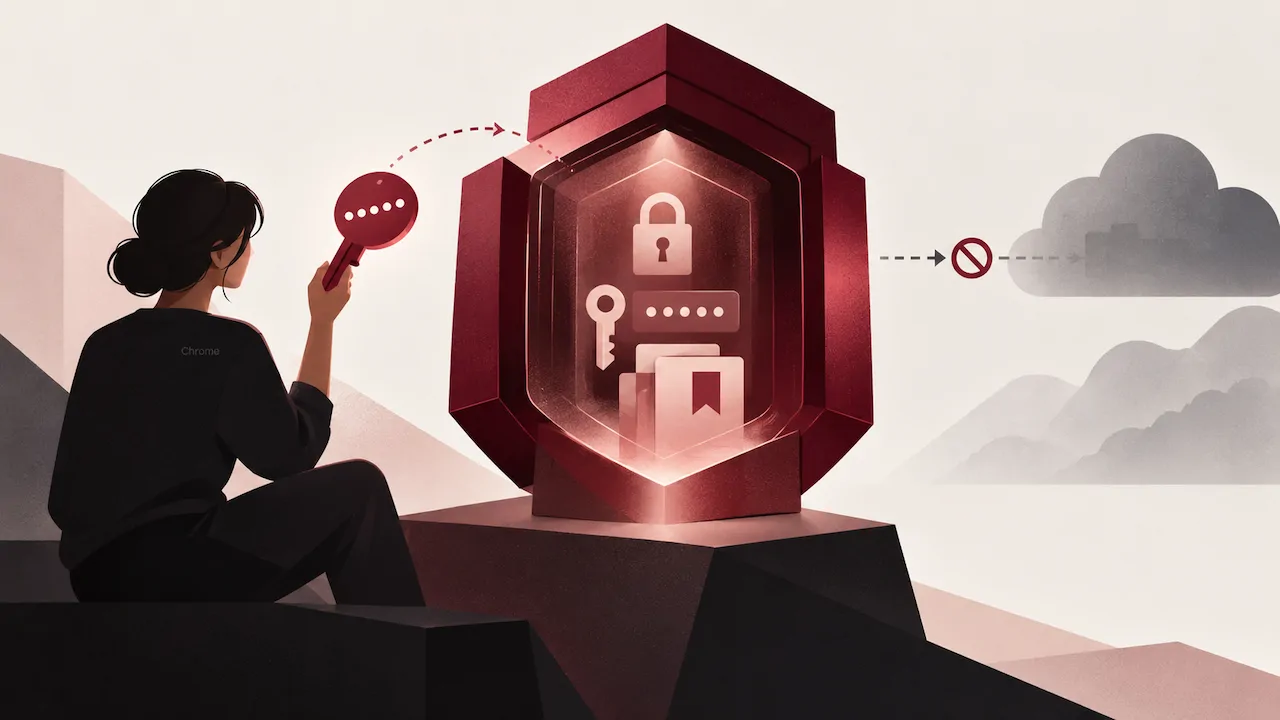
Community feedback on forums like Reddit often highlights that enabling a custom Sync Passphrase adds a zero-knowledge encryption layer, ensuring even Google cannot read your synced credentials.
FAQ
Why are my open tabs from my phone not showing up on my PC?
Ensure that Open Tabs is enabled under Manage what you sync on both devices. Additionally, verify that both devices are connected to the internet and logged into the exact same Google account.
Does Chrome Sync use end-to-end encryption?
By default, Google encrypts synced data in transit and at rest. If you want end-to-end encryption, you can create a custom sync passphrase in Chrome Settings under encryption options.
What happens to my bookmarks if I turn off Chrome Sync?
Turning off sync stops future changes from uploading to the cloud, but the bookmarks already present on your local device remain intact unless you manually delete your browsing data.