
Chrome hardware acceleration is a built-in feature that offloads graphics-intensive tasks—such as 3D rendering, video decoding, and complex animations—from your computer’s CPU directly to your dedicated or integrated Graphics Processing Unit (GPU). By default, Google Chrome enables this feature to provide smoother page scrolling and faster media playback. However, conflicting GPU drivers or hardware limits can cause glitches, making it necessary to toggle this setting.
What Does Hardware Acceleration Do in Google Chrome?
Under standard browsing conditions, your Central Processing Unit (CPU) handles the vast majority of web computations. However, processing heavy multimedia like 4K streaming, WebGL graphics, or browser-based games can quickly bottleneck CPU resources. Hardware acceleration delegates these demanding visual tasks to the GPU, which is specifically architected for parallel mathematical processing.
According to technical overviews on Wikipedia and Chromium developer notes, GPU offloading significantly reduces latency and lowers overall CPU load, extending battery life on modern laptops while delivering high-frame-rate rendering.
When Should You Turn Off Hardware Acceleration?
While hardware acceleration is designed to boost performance, software bugs, outdated display drivers, or thermal throttling can lead to severe browser instability. Communities across Reddit and technical support forums frequently recommend disabling this feature to resolve specific graphical issues.
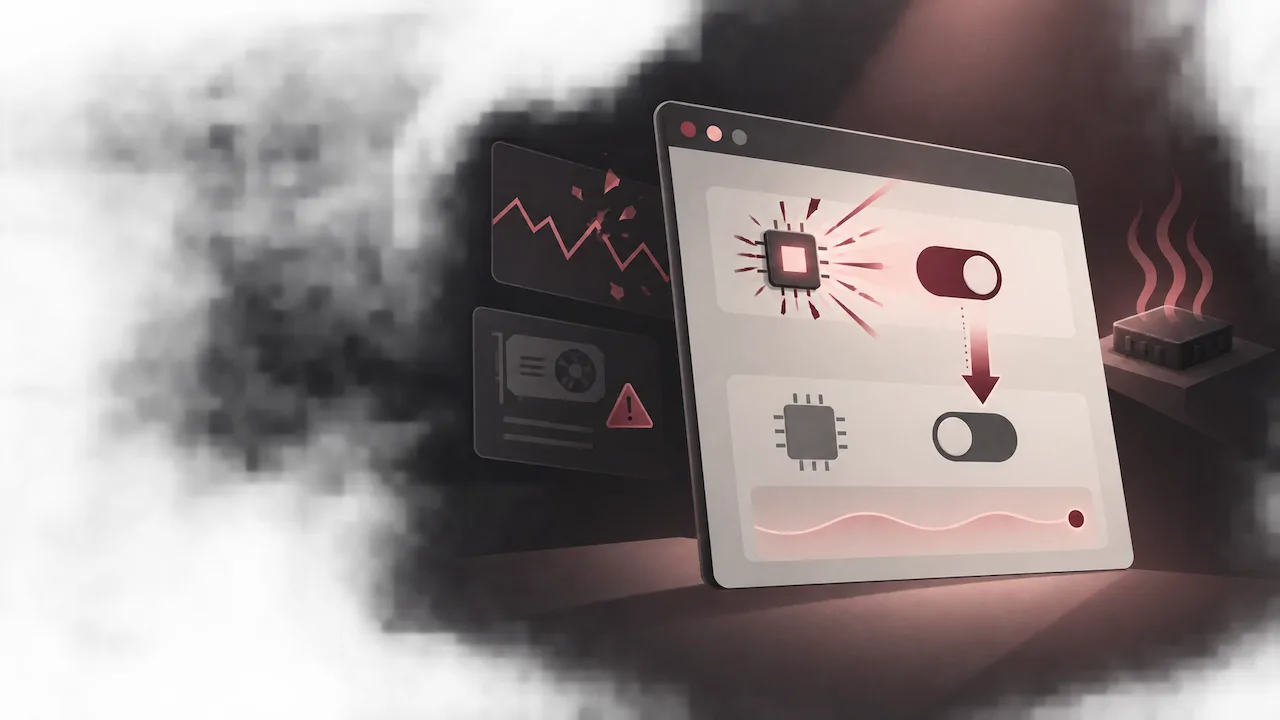
You should consider modifying this setting under the following scenarios:
- Screen Flickering or Tearing: Visual artifacts or sudden flashing during browser navigation or tab switching.
- Black Screen Glitches: Videos on platforms like YouTube or Twitch playing audio while showing only a blank or green screen.
- Severe Video Stutter: Dropped frames and lagging visuals when attempting to stream high-resolution video (often resolving attempts to fix chrome video stutter).
- Browser Crashes and Freezes:Chrome unexpectedly freezing during WebGL rendering or heavy canvas computations.
- Old or Incompatible GPU Drivers: Legacy hardware failing to execute modern graphics APIs smoothly.
Comparison: Hardware Acceleration Enabled vs. Disabled
| Aspect | Hardware Acceleration Enabled (Default) | Hardware Acceleration Disabled |
|---|---|---|
| Primary Workload | GPU handles visual rendering and video decoding | CPU handles all rendering and visual processing |
| Performance | Faster rendering, smoother 60+ FPS animations | Slightly slower on complex graphics, consistent UI |
| Stability | Prone to crashes if GPU drivers are outdated | Highly stable, eliminates GPU-related display bugs |
| Best Used For | Modern PCs, 4K streaming, 3D WebGL apps | Fixing black screens, visual glitches, or older PCs |
How to Enable or Turn Off Hardware Acceleration Chrome
Managing this feature in Chrome requires only a few clicks via the browser's system configuration panel. Follow these step-by-step instructions:
- Open your browser. If you do not have the latest build, perform a Chrome download to ensure all settings align.
- Click the three vertical dots (Customize and control Google Chrome) in the top-right corner of the window.
- Select Settings from the drop-down menu (or type
chrome://settingsin the address bar and hit Enter). - In the left-hand navigation sidebar, click on System.
- Locate the option labeled "Use graphics acceleration when available" (formerly listed as hardware acceleration).
- Toggle the switch to the Off position to turn off hardware acceleration Chrome, or toggle it On to enable it.
- Click the Relaunch button that appears next to the toggle to restart Chrome and apply your changes.
Note: Relaunching will restore your open tabs, but unsaved work inside web forms or interactive sessions may be lost. Make sure to save your work before restarting.
Additional Troubleshooting Tips for GPU Issues
If turning off hardware acceleration resolved your playback issues but you still want the performance benefits of GPU rendering, try these remediation steps:
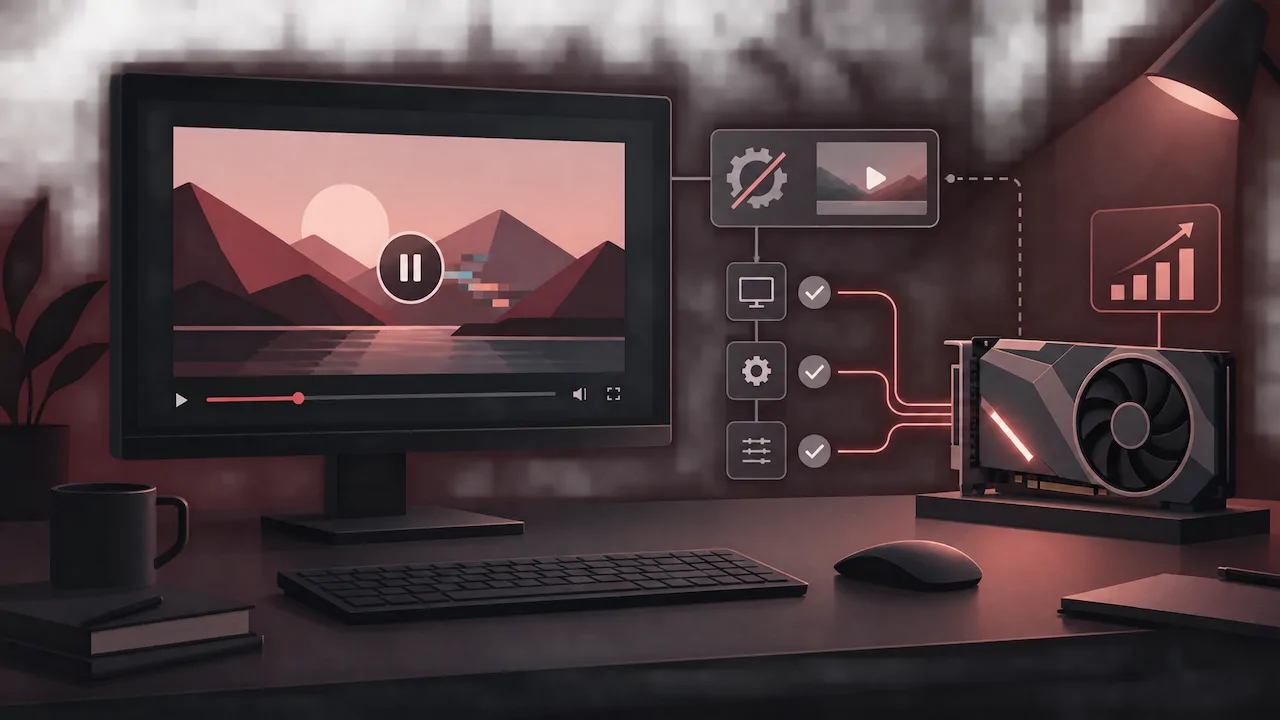
- Update Graphics Drivers: Check the official website of your GPU vendor (NVIDIA, AMD, or Intel) and install the latest stable driver release.
- Check Chrome Flags: Navigate to
chrome://flagsand search for Override software rendering list. Enabling this forces Chrome to use GPU acceleration on unsupported hardware, though it should be used with caution. - Verify GPU Status: Type
chrome://gpuinto your address bar to see a detailed diagnostic breakdown of which hardware features are currently hardware accelerated or disabled.
FAQ
How do I know if hardware acceleration is working in Chrome?
Type chrome://gpu in your Chrome address bar and press Enter. Review the "Graphics Feature Status" list; items such as Canvas, WebGL, and Video Decode will show "Hardware accelerated" in green if the feature is actively operating.
Does disabling hardware acceleration increase CPU usage?
Yes. When hardware acceleration is turned off, graphical calculations and video decoding fall entirely back onto the CPU. On modern multi-core processors, everyday web browsing remains fast, but high-bitrate 4K videos or browser games may cause noticeable spikes in CPU utilization.
Why does Chrome show a black screen when playing videos?
A black screen during media playback is usually caused by an incompatibility between Chrome’s video decoder and your graphics card driver. Disabling hardware acceleration or updating your display adapter driver typically fixes this issue immediately.
Is it safe to keep hardware acceleration disabled permanently?
Yes, it is entirely safe. Disabling this setting will not harm your browser or operating system. It simply ensures maximum display stability at the cost of slight rendering efficiency during graphic-heavy tasks.