
Chrome Memory Saver and Energy Saver are built-in performance features in the Chromium engine designed to optimize system resources by discarding inactive background tabs and reducing background visual workload. By configuring these settings in google chrome, users can reclaim gigabytes of RAM on multitasking desktops and gain significant battery life on portable laptops without installing third-party extensions.
Understanding Chrome Performance Settings
Google introduced the dedicated Performance Hub to address long-standing user feedback regarding high RAM consumption and rapid battery drain. As web applications have grown more complex—running persistent WebSockets, canvas scripts, and background workers—browser resource overhead has expanded significantly. According to community discussions on Reddit and technical teardowns on Chromium Gerrit, unmanaged background tabs often consume between 50 MB to 500 MB of RAM each.
The Performance menu centralizes resource management into two primary switches: Memory Saver (RAM optimization) and Energy Saver (battery and GPU optimization). Accessing these controls allows you to fine-tune browser behavior based on your hardware capabilities.
How Chrome Memory Saver Discards Inactive Tabs
Memory Saver frees up memory from tabs you are not actively viewing. When system memory usage reaches a specific threshold, Chrome flags dormant tabs and moves their runtime state from active RAM to the local disk cache—a process technically termed tab discarding.
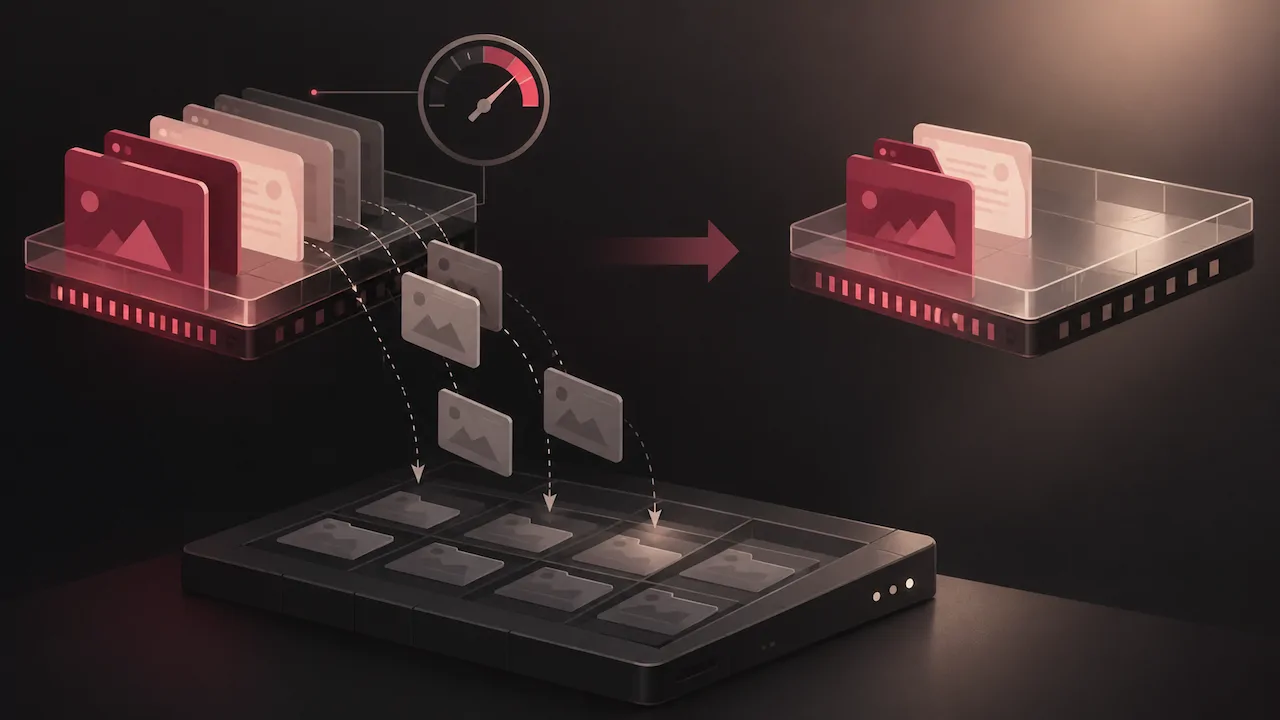
- Non-Destructive Freeing: Discarded tabs do not close. The tab title, favicon, and URL remain visible in your tab bar.
- Seamless Reloading: When you click back onto a sleeping tab, Chrome instantly restores the page state from cache.
- Memory Saver Modes: In modern Chrome builds, users can choose between Moderate (discards tabs based on system need), Balanced (discards according to usage patterns and system load), and Maximum (discards tabs shortly after they become inactive).
If you are running an outdated version of the browser, securing the latest chrome download ensures you have the latest three-tier Memory Saver controls and refined heuristics.
How to Whitelist Sites in Always Keep These Sites Active
While tab discarding preserves system memory, it may disrupt background audio streams, live dashboard monitoring, ongoing file uploads, or web apps with unsaved form states. Chrome provides an exclusion list to protect critical sites from sleep mode.
Step-by-Step Whitelisting Guide:
- Open Chrome and click the three-dot menu icon in the upper-right corner.
- Navigate to Settings > Performance.
- Under the Memory Saver section, locate Always keep these sites active.
- Click the Add button.
- Enter the full domain (e.g.,
web.whatsapp.comorapp.slack.com) or choose from the currently opened tabs list, then click Add.
Pro Tip: You can use wildcard matching, such as
*.example.com, to prevent all subdomains of an essential service from going to sleep while you work.
How Chrome Energy Saver Mode Extends Laptop Battery
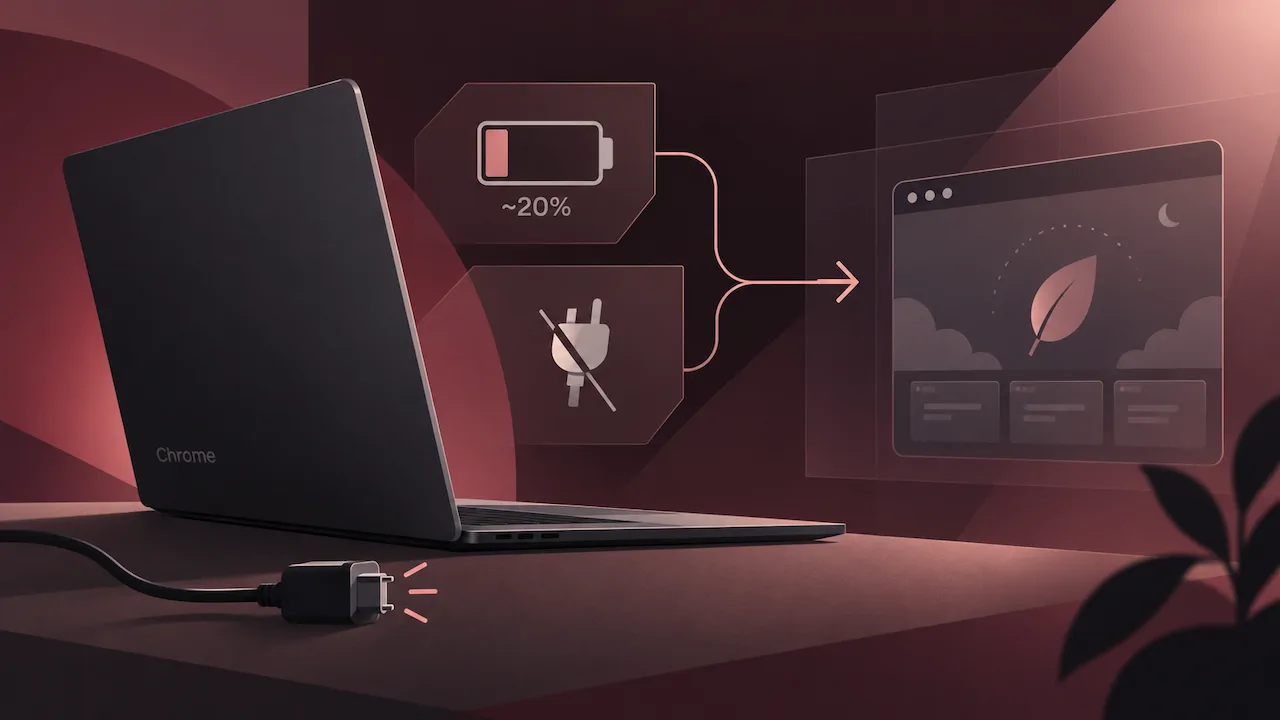
When working away from a power outlet, chrome energy saver mode preserves battery by limiting background resource-intensive tasks. Once active, Chrome applies three key hardware-level adjustments:
- Frame Rate Throttling: Reduces page rendering and scrolling frame rates from 60/120 fps down to 30 fps on non-critical rendering tasks.
- Animation Reduction: Pauses smooth scrolling animations, complex CSS effects, and animated background elements.
- Video Playback Tuning: Adjusts background video decoding efficiency to reduce strain on the GPU and CPU.
You can configure Energy Saver to turn on automatically when your battery drops below 20%, or set it to run whenever your laptop is unplugged from mains power.
Memory Saver vs Energy Saver Mode Comparison
| Feature | Chrome Memory Saver | Chrome Energy Saver |
|---|---|---|
| Primary Objective | Free up RAM and improve multitasking responsiveness | Extend battery life on portable devices |
| Core Mechanism | Discards inactive background tabs to storage cache | Lowers capture rates, throttles video/GPU frames to 30fps |
| Trigger Options | Always On (Moderate, Balanced, Maximum) | Battery below 20% or Unplugged from power |
| Primary Hardware Benefited | System Memory (RAM) and Swap File | Battery, CPU, and Integrated GPU |
| Impact on Tab State | Requires brief page reload upon reactivation | Tabs remain active; visual smoothness is reduced |
FAQ
Does Memory Saver cause data loss in web forms?
Most modern web applications cache input states automatically, but unsubmitted forms on older HTTP sites may reset when a discarded tab reloads. To prevent accidental data loss, add critical workflow domains to the "Always keep these sites active" list.
How much memory can Memory Saver actually recover?
Depending on the number of open tabs and the complexity of loaded sites, enabling Memory Saver typically frees between 30% and 40% of browser memory usage, reducing the likelihood of out-of-memory crashes on systems with 8 GB of RAM or less.
Why does video playback feel choppy when Energy Saver is active?
Energy Saver lowers the browser rendering target to 30 frames per second to reduce hardware decoding strain. While video streams remain watchable, UI animations and high-framerate media may appear less fluid until the device is plugged into power.
Can I disable tab discarding for a single browsing session?
Yes. If you need all tabs active for a specific research session without altering global settings, simply turn the Memory Saver toggle off under Settings > Performance, and turn it back on when your multitasking session ends.