
How to Manually Install Chrome Extensions from CRX and ZIP Files
To install CRX file Chrome packages or load unpacked ZIP folders, you must enable Developer Mode inside your browser's extensions dashboard. While the official Chrome Web Store remains the standard distribution hub, developers, beta testers, and power users often need to test custom scripts or run third-party plugins that are not hosted on the Web Store. Following official developer guidelines, you can safely install and manage these add-ons in just a few steps.
Step 1: Enable Developer Mode in Google Chrome
Before you can sideload any external extension, your browser must allow unverified sources. By default, Google Chrome restricts installation to verified web store items to protect user security.
- Open your browser and navigate to
chrome://extensionsin the address bar (or click the three-dot menu > Extensions > Manage Extensions). - Locate the Developer mode toggle switch in the top-right corner of the page.
- Toggle the switch to the ON position. You will immediately see three new options appear: Load unpacked, Pack extension, and Update.
Method 1: How to Install Chrome Extension Manually from a ZIP File
If you downloaded an extension archive from GitHub, GitLab, or a developer forum like Reddit, it typically arrives as a .zip file. You cannot drag a compressed archive directly into the browser; you must unpack it first.
- Extract the ZIP archive: Right-click the downloaded
.zipfile and extract its contents into a permanent folder on your local drive. Ensure the extracted folder contains themanifest.jsonfile at its root or immediate subfolder level. - Open Extensions Manager: Go to
chrome://extensionswith Developer Mode turned on. - Load Unpacked: Click the Load unpacked button in the top-left toolbar.
- Select the Folder: Browse to the directory containing the extracted files (the folder that holds
manifest.json) and click Select Folder. - The extension will load instantly and become active in your browser toolbar.
Note: Do not delete or move the extracted folder after installation. Chrome reads the files directly from that local path; deleting the folder will break the extension.
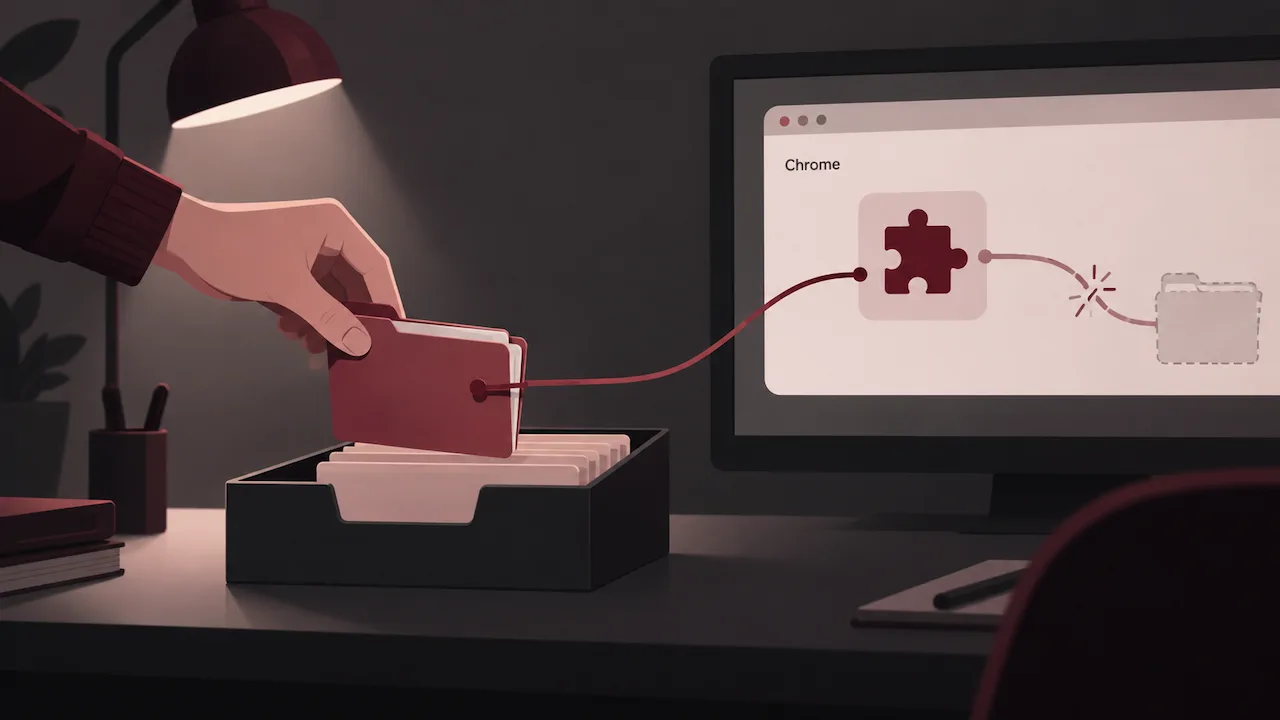
Method 2: How to Install CRX Files in Chrome
A .crx file is a packaged, compressed Chrome extension format. Modern versions of Chromium-based browsers apply strict policies to direct .crx execution, but you can still install them manually using drag-and-drop mechanics.
- Ensure Developer mode is toggled on at
chrome://extensions. - Locate the downloaded
.crxfile in your system file explorer. - Drag the
.crxfile from your file manager and drop it directly onto thechrome://extensionstab. - A confirmation dialog will appear asking: "Add [Extension Name]?" along with the requested permissions.
- Click Add extension to complete the installation.
If your browser blocks the drag-and-drop method due to updated enterprise policies, you can rename the .crx extension to .zip, extract the files using any standard decompression tool, and load it via the Load unpacked method described above.
Comparison: CRX Package vs. Unpacked ZIP Installation
| Feature | CRX Package | Unpacked ZIP Directory |
|---|---|---|
| Primary Use Case | Pre-compiled builds, offline distribution | Active development, open-source testing |
| Ease of Updating | Requires dragging a new CRX file | One-click "Reload" icon in extensions menu |
| Persistence | Stays in Chrome user profile folder | Requires keeping local source folder intact |
| Source Inspection | Requires unpacking utilities | Directly editable HTML/JS files |
Security Best Practices for Sideloading Extensions
Installing extensions outside the Web Store bypasses Google's automated malware scanning and policy enforcement. Communities across GitHub and Wikipedia emphasize standard precautions when handling unverified code:
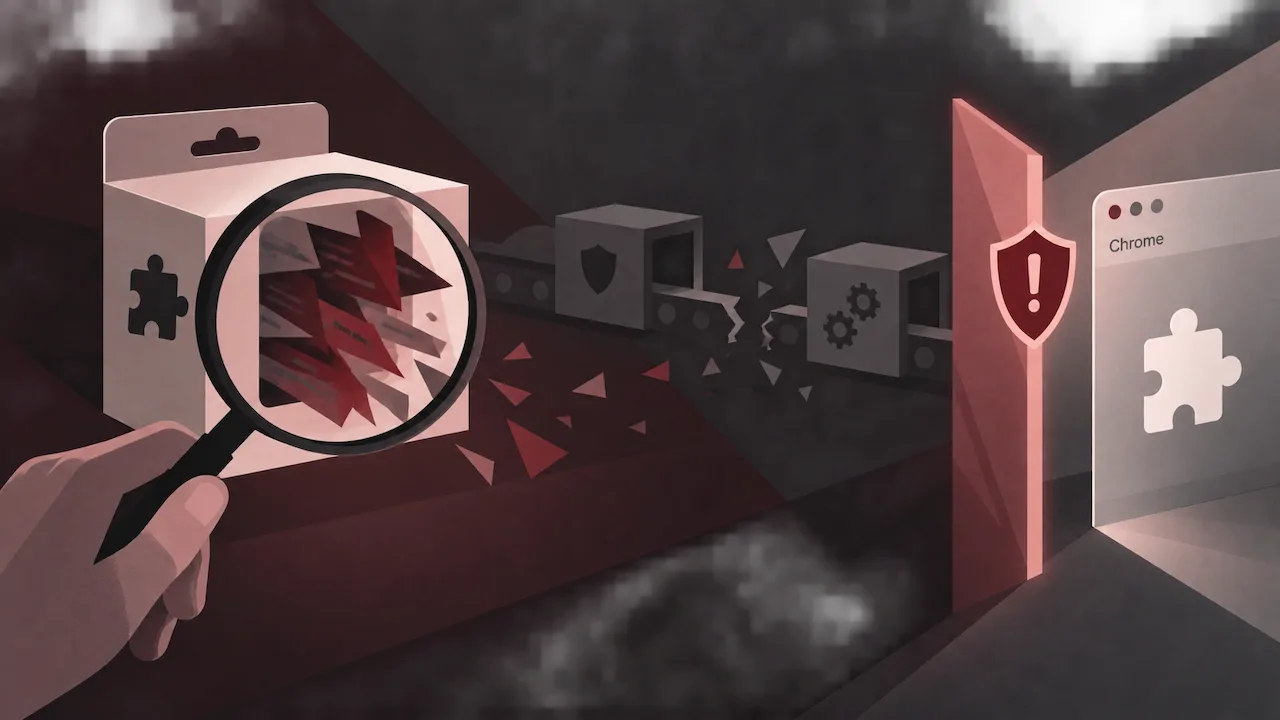
- Inspect the Manifest: Review the
manifest.jsonfile to see what permissions the extension requests (e.g., access to all web traffic, clipboard data, or storage). - Verify Source Integrity: Only install files from verified open-source repositories or trusted creators. Avoid random compiled
.crxdownloads from unverified file-sharing mirrors. - Keep Your Browser Updated: Always ensure you are running an up-to-date release via an official Chrome download to maintain the latest security sandboxing patches.
FAQ
Why does Chrome say "Extensions cannot be added from this website"?
Google disables direct inline installation from third-party websites to prevent drive-by malware attacks. To install the add-on, download the file locally to your machine first, visit chrome://extensions, enable Developer Mode, and use either the "Load unpacked" or drag-and-drop technique.
Why does Chrome disable my unpacked extension after restarting?
In standard consumer builds on certain operating systems, Chrome may display a warning banner or temporarily disable unpacked extensions on launch to prevent unauthorized background modifications. You can simply click the toggle to re-enable it in chrome://extensions.
Can I convert a CRX file into a ZIP file?
Yes. A CRX file is essentially a ZIP archive with a specialized header. You can change the file extension from .crx to .zip and use standard tools like 7-Zip, WinRAR, or macOS Archive Utility to extract the raw source files.
How do I update an unpacked extension when new code is released?
Replace the old files in your local directory with the updated version, then go to chrome://extensions and click the circular Reload icon on the extension's card.