
When you see the message your connection is not private chrome displays, it means your web browser cannot validate the website's SSL/TLS certificate. Chrome triggers this warning to prevent unauthorized third parties from intercepting sensitive personal data, such as passwords, banking credentials, or payment details. While the error can stem from an expired or misconfigured certificate on the server, it is frequently caused by client-side glitches like incorrect system clocks, misconfigured network settings, or aggressive antivirus software.
Understanding Common Chrome SSL Error Codes
According to the official Chromium SSL/TLS documentation, Chrome performs rigorous cryptographic checks during the TLS handshake. If any verification parameter fails, the browser blocks access and displays a specific error code:
- NET::ERR_CERT_AUTHORITY_INVALID: The SSL certificate was issued by an untrusted or self-signed Certificate Authority (CA) that your operating system or browser does not recognize.
- NET::ERR_CERT_COMMON_NAME_INVALID: The domain name listed on the SSL certificate does not match the actual URL you typed into the address bar.
- NET::ERR_CERT_DATE_INVALID: The website's certificate has either expired or your computer's local clock is set incorrectly.
- SSL_ERROR_RX_RECORD_TOO_LONG: Indicates a misconfiguration on the web server where the port expects plain HTTP traffic instead of encrypted HTTPS traffic.
Client-Side vs. Server-Side SSL Issues
Before attempting complex fixes, it is helpful to identify whether the problem originates on your computer or the web host:
| Indicator | Client-Side Problem | Server-Side Problem |
|---|---|---|
| Occurrence | Happens across multiple unrelated websites | Happens only on one specific domain |
| Incognito Behavior | May resolve in Incognito mode (extensions disabled) | Persists across all browser modes and devices |
| Other Devices | Loads normally on mobile or other Wi-Fi networks | Fails on all devices, phones, and networks |
| Primary Cause | System time, cached SSL state, VPN/antivirus proxy | Expired certificate, missing intermediate chain |
6 Safe Steps to Fix the Connection Error in Chrome
1. Check and Sync Your System Date and Time
SSL certificates are strictly time-sensitive. If your operating system clock is even a few minutes ahead or behind, Chrome will reject the certificate validity period.
- Windows: Go to Settings > Time & Language > Date & Time and toggle on Set time automatically. Click Sync now.
- macOS: Navigate to System Settings > General > Date & Time and enable Set time and date automatically.
2. Test the Page in Incognito Mode
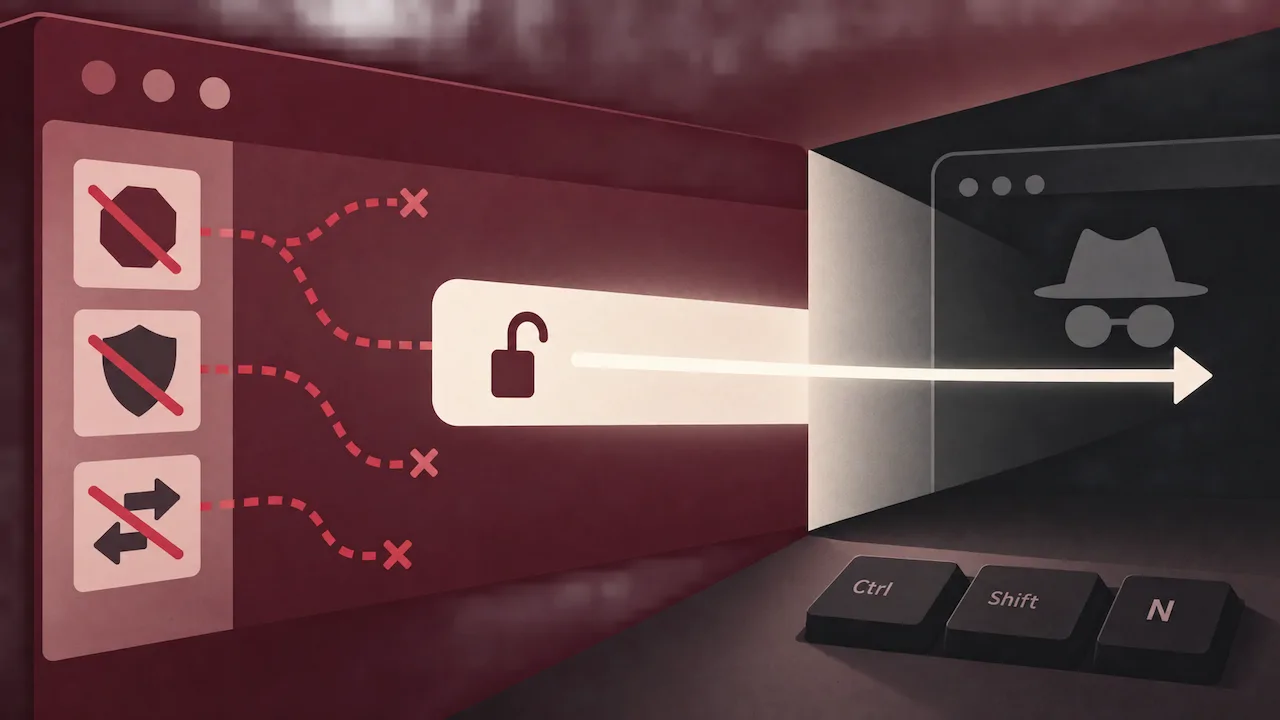
Third-party extensions, particularly ad blockers, security extensions, and proxy managers, can interfere with HTTPS traffic. Open an Incognito window by pressing Ctrl + Shift + N (or Cmd + Shift + N on macOS). If the website loads without warnings, disable your extensions one by one to pinpoint the culprit.
3. Clear Your SSL State and Browser Cache
Corrupted local cache entries can store outdated certificate tokens. Clearing the SSL cache forces your machine to request a fresh handshake.
- In google chrome, press
Ctrl + Shift + Delete, select All time, check Cached images and files, and clear the data. - On Windows, open the Start Menu, search for Internet Options, go to the Content tab, and click Clear SSL State.
4. Temporarily Disable Antivirus HTTPS Scanning
Many antivirus suites intercept SSL connections by installing a local proxy certificate to scan traffic. When this local certificate fails to validate, you will encounter the need to fix net err cert authority invalid errors. Check your antivirus settings for features named HTTPS Scanning, SSL Filtering, or Web Shield and temporarily toggle them off for testing.
5. Flush Your DNS Cache
Stale DNS records can route your connection to an outdated server IP address with mismatched certificates. Open Command Prompt as Administrator (or Terminal on macOS) and run:
ipconfig /flushdns(Windows) orsudo dscacheutil -flushcache; sudo killall -HUP mDNSResponder(macOS)
6. Update or Reinstall Google Chrome
Older browser builds lack updated root certificate stores provided by modern security authorities. Ensure your browser is up to date, or complete a fresh chrome download to replace corrupted browser binaries and root trust stores.
The Risks of Bypassing SSL Warnings
Users frequently discuss temporary workarounds on platforms like Reddit, such as typing thisisunsafe directly into the Chrome window or clicking Advanced > Proceed to site (unsafe). While convenient, cybersecurity researchers strongly advise against this practice.
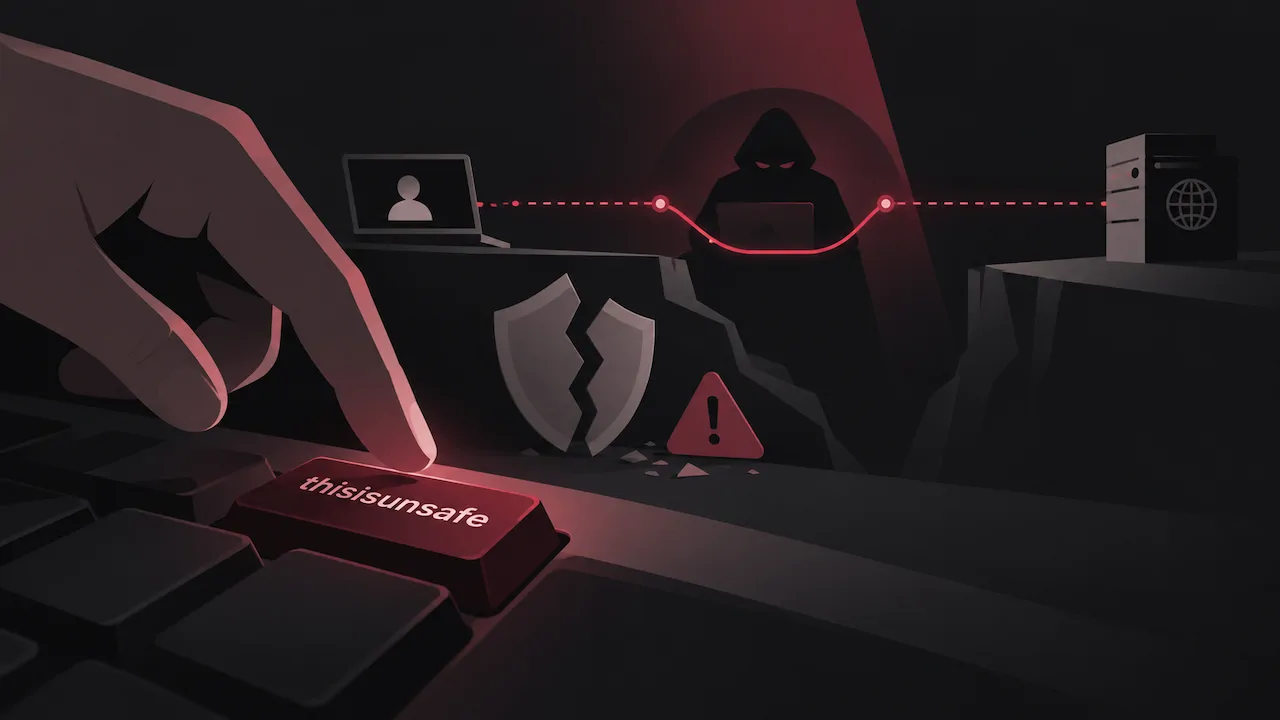
Bypassing the warning disables transport encryption verification entirely. If an attacker is performing a Man-in-the-Middle (MitM) attack—especially on public Wi-Fi networks in airports or cafes—they can intercept plaintext passwords, session cookies, and financial data without your knowledge. Only proceed if you are a developer testing a local development server with known self-signed certificates.
FAQ
Why does Chrome say my connection is not private on every website?
If every website triggers an SSL warning, the issue is almost certainly on your local device. Common causes include an incorrect computer clock, an expired root certificate in the operating system, or security software intercepting your network traffic.
Is it safe to bypass the SSL certificate warning in Chrome?
No. Bypassing an SSL warning exposes your connection to eavesdropping and data tampering. You should never bypass the warning on websites where you enter login credentials or payment information.
What is the difference between HTTP and HTTPS?
HTTP transmits data across the web in unencrypted plaintext, allowing anyone on the network path to read it. HTTPS uses TLS encryption to establish a secure, authenticated channel between your browser and the website server.
How do I fix NET::ERR_CERT_COMMON_NAME_INVALID?
This error occurs when the domain name on the certificate does not match the URL. Check whether typing www. before the domain resolves it. If not, the website administrator must re-issue the certificate with proper Subject Alternative Names (SANs).