
To change chrome download location, open your browser settings by navigating to chrome://settings/downloads, click the Change button next to the Location field, and select your preferred folder or external drive. Google Chrome saves all downloaded files to your operating system's default Downloads folder automatically unless you customize this path or enable the prompt feature.
Why Customize Your Chrome Download Settings?
By default, Google Chrome routes every file—from PDF invoices to heavy installers—into a single system directory. Over time, this clutters your primary storage drive (often the C: drive on Windows or system volume on macOS), potentially slowing down system operations. Customizing your chrome download settings helps you:
- Prevent System Drive Bloat: Move heavy files directly to high-capacity secondary SSDs or external storage drives.
- Improve Workflow Efficiency: Route specific project assets into dedicated cloud-synced directories like Google Drive, OneDrive, or Dropbox.
- Enhance Security: Review incoming files before they automatically execute or clutter sensitive system partitions, a security practice frequently recommended in discussions on Reddit tech communities.
Step-by-Step: How to Change Chrome Download Location
Whether you are on Windows, macOS, ChromeOS, or Linux, changing the default directory takes less than a minute. Follow these direct steps:
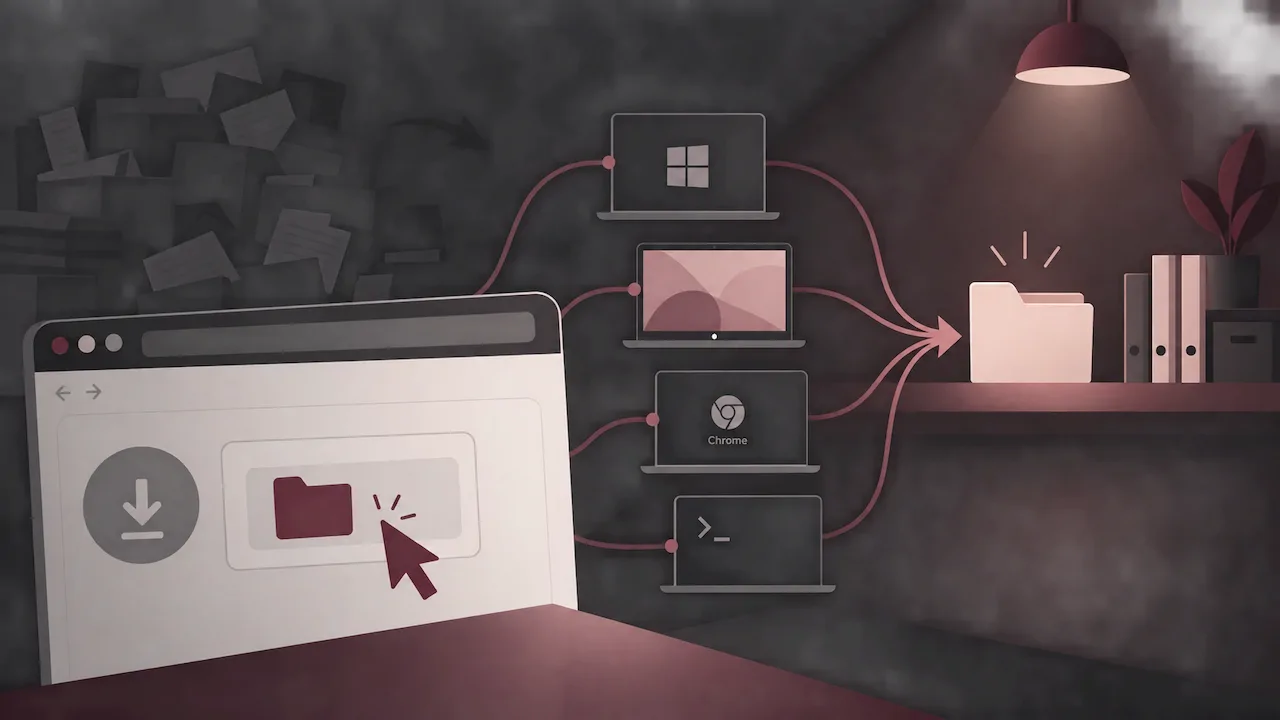
- Launch your Chrome download-enabled browser on your desktop.
- Click the three vertical dots (Customize and control Google Chrome) in the top-right corner and select Settings (or type
chrome://settings/downloadsin the address bar). - In the left sidebar, click on Downloads.
- Under the Downloads section at the top, locate the Location setting and click Change.
- Browse your file system, select your desired folder (or an attached external hard drive / USB drive), and click Select Folder (Windows) or Open (macOS).
Note for External Drives: According to official Chromium documentation and support forums, if you select an external drive or network share that gets disconnected, Chrome will fallback to prompting you or default back to the local user directory until the drive is reconnected.
How to Ask Where to Save Each File Chrome Prompt
If you handle diverse file types daily, a single static folder may not suit your needs. You can configure Chrome to ask you for a target folder on every single download.
- Go back to
chrome://settings/downloads. - Locate the option labeled "Ask where to save each file before downloading".
- Toggle the switch to the ON position (blue).
When enabled, every time you initiate a download, a standard file explorer dialog will pop up, allowing you to rename the file and choose an exact target path on the spot.
Comparison: Default Folder vs. Ask Every Time
Choosing the best download strategy depends on your everyday browsing habits:
| Feature | Static Custom Folder | Ask Where to Save Each File |
|---|---|---|
| Download Speed | 1-click instant download | Requires folder selection click |
| File Organization | All files land in one place | Organized by folder at the point of download |
| Disk Management | Can fill up one drive silently | Easy to allocate files across multiple drives |
| Best For | Casual browsing, bulk downloading | Workflows, media editing, research projects |
FAQ
What happens if my external download drive is disconnected?
If Chrome cannot detect your external drive when a download begins, it will either prompt you to choose an accessible destination or temporarily save the file to your operating system's default Downloads folder.
Can I set different download folders for different file extensions?
Native Google Chrome settings do not support extension-specific routing (e.g., sending images to Pictures and PDFs to Documents). However, you can toggle "Ask where to save each file before downloading" or use verified Chrome Web Store extensions designed for download routing.
Why won't Chrome save my new download folder setting?
This usually happens if your user account lacks read/write permissions for the selected directory, or if corporate group policies manage your browser settings. Ensure your target folder has write permissions enabled.